We Analyzed 100+ Salesflow Reviews - Here’s the Truth Nobody Tells You

Typing “Salesflow reviews” into Google and feeling more confused than before?
Some people say Salesflow is a lifesaver.
Others say it breaks, bugs out, or just eats money.
This article cuts through that noise.
It’s based on real Salesflow reviews from real users, not sales pages.
If you’re wondering,
“Will Salesflow actually help my LinkedIn outreach, or will it just add more stress?”
this is written for you.
Keep reading to see what’s true, what’s not, and whether Salesflow is worth a place in your toolbox.
What Is Salesflow?
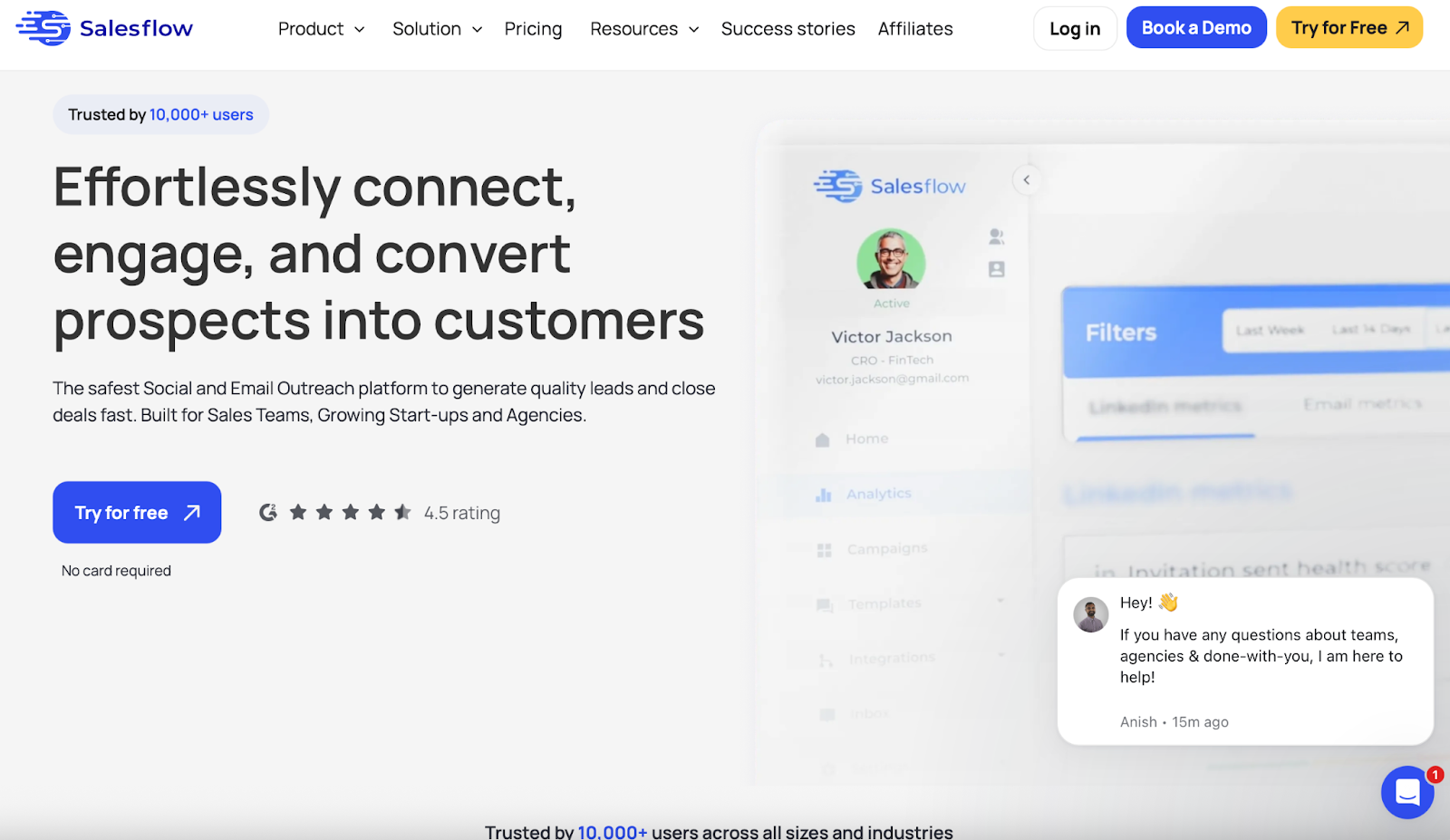
Salesflow helps you send LinkedIn messages automatically.
You connect your LinkedIn account, set up a list of people to reach out to, and it sends connection requests, follow-ups, and InMails for you, every day.
It also has:
- A real-time inbox to manage replies
- Email outreach (if you want more than just LinkedIn)
- CSV import for contact lists
- Reports to track replies, views, and success
Salesflow works with LinkedIn Basic, Premium, and LinkedIn Sales Navigator.
You can use it if you're a solo user, a sales team, or an agency.
How Does Salesflow Work?
Here’s how to start a Salesflow campaign in 5 easy steps:
1. Connect Your LinkedIn Account
- Log in to Salesflow
- Click “Add LinkedIn Account”
- Enter your LinkedIn email and password
- If you use a proxy, turn it on. If not, just skip it
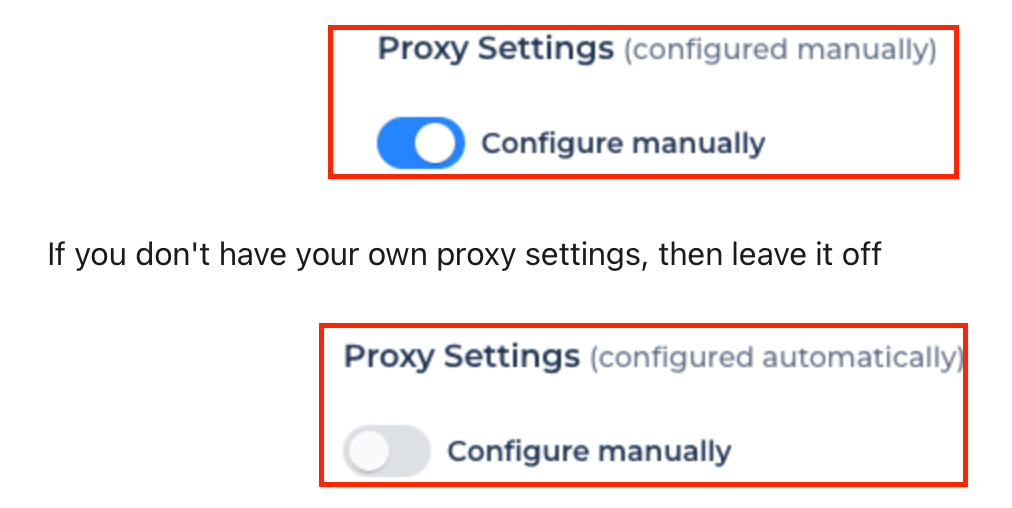
- Click Save Changes
2. Create a Campaign
- Go to the Campaigns tab
- Click “Add New Campaign”

- Choose a campaign type:
- New Connections – sends invites + follow-ups
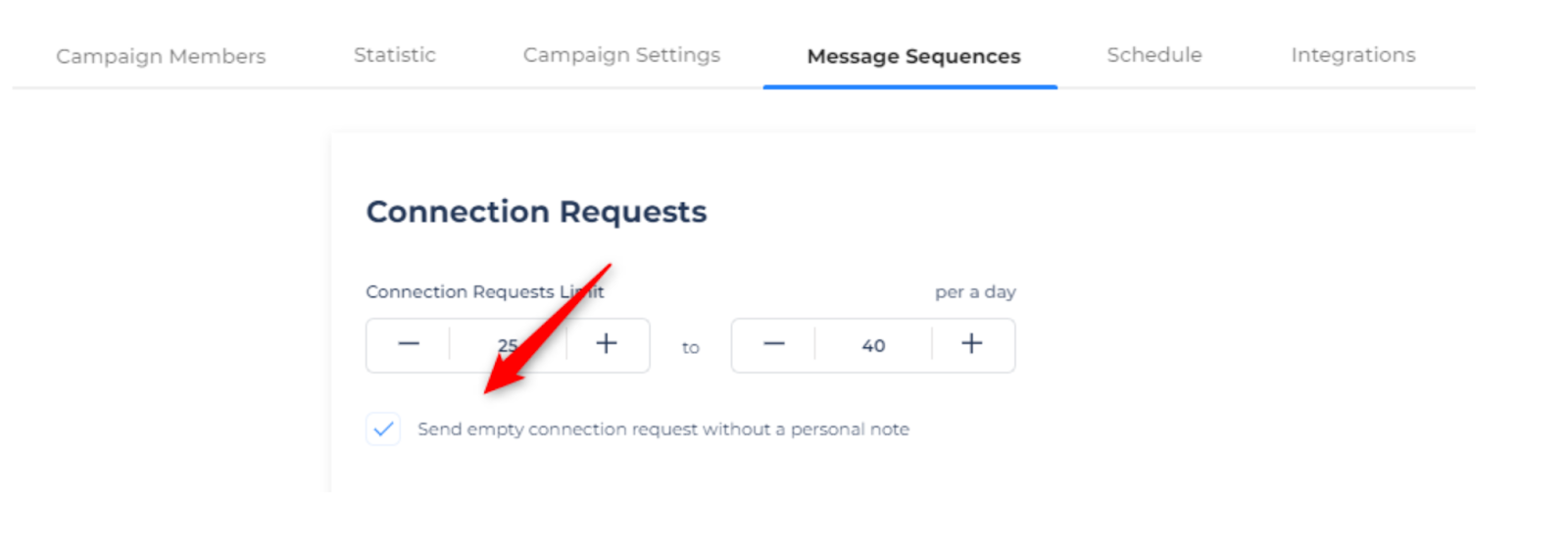
- Connections with Email – sends emails + LinkedIn messages
- Existing Contacts – follow-up to 1st-degree contacts
- Open InMails – send InMails to open profiles
- Groups & Events – message people from LinkedIn groups or events
3. Add Messages & Contacts
- Write your message templates
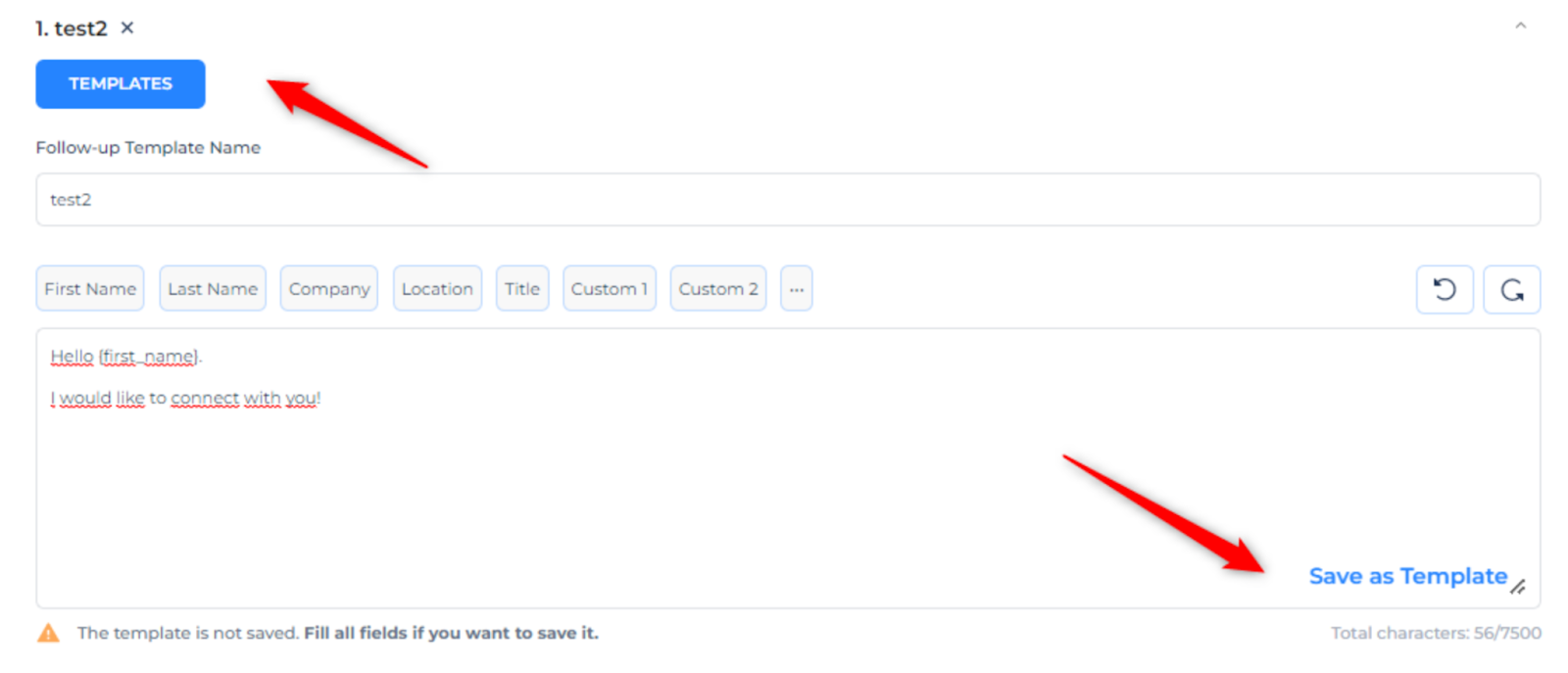
- Upload your contact list (CSV)
- Once ready, click the “Play” button to start the campaign
4. Track Results
- Go to your campaign → click “Statistics”
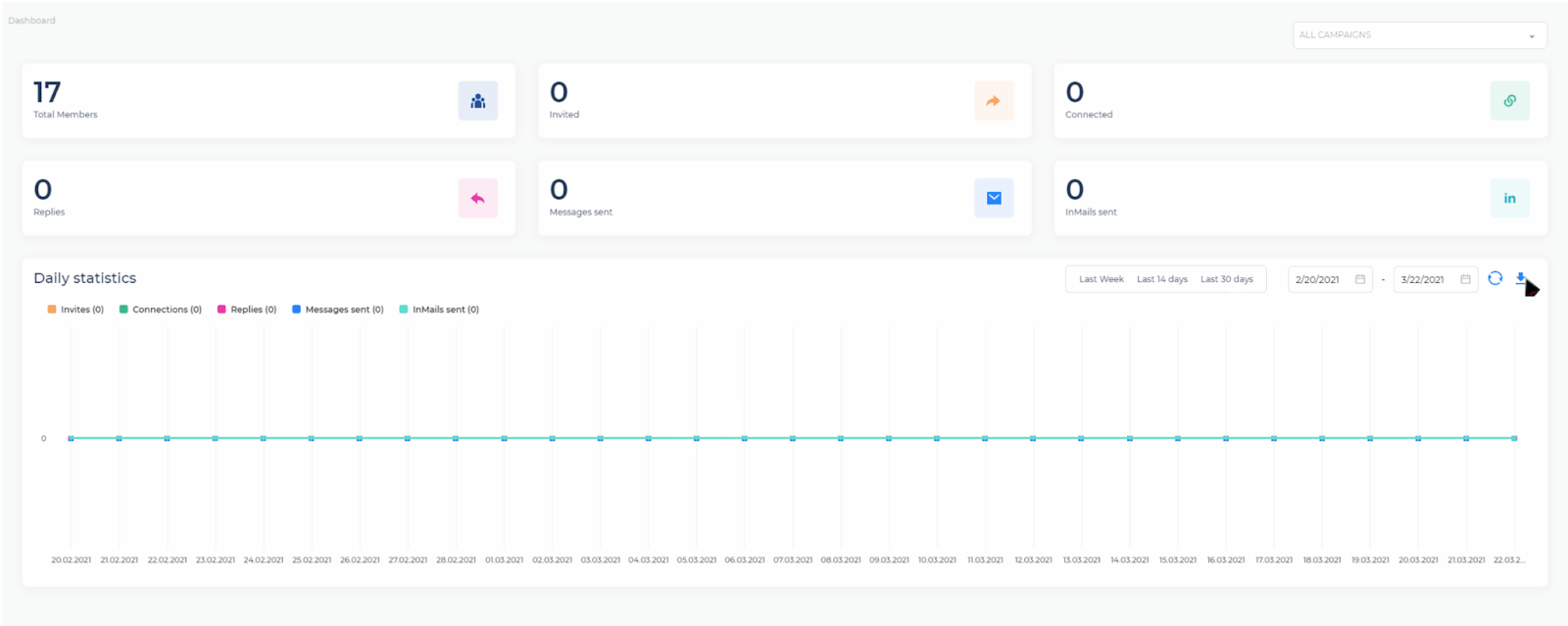
- You’ll see how many:
- Invites were sent
- Messages or emails were sent
- Replies you got
- InMails sent
- Emails opened
- Invites were sent
- You can also filter by date and export the data
5. Check Your Inbox
- Go to the Inbox tab or Home tab
- Salesflow shows you all unread messages and replies in one place
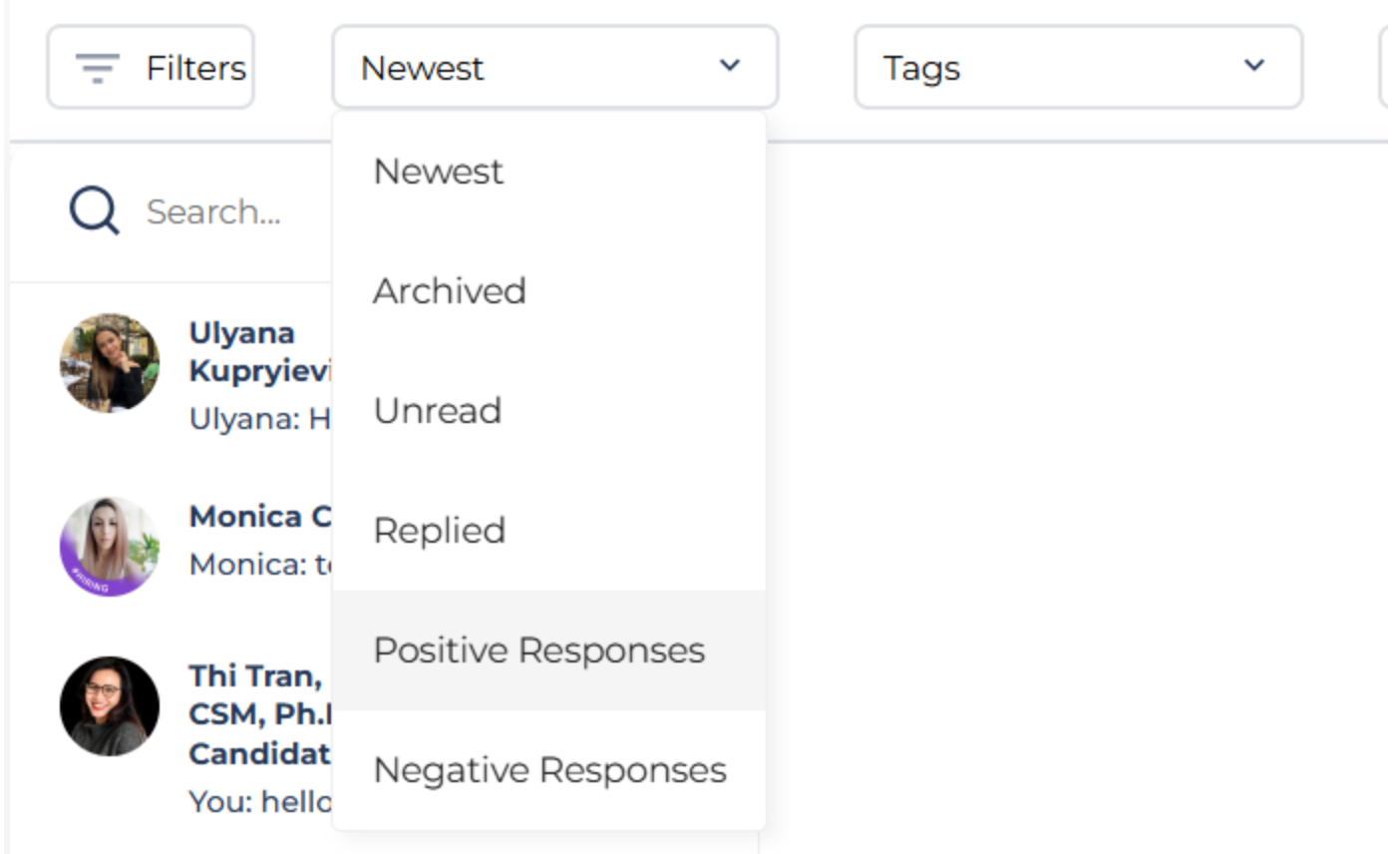
- You can reply from there directly

That’s it. Once it’s set up, Salesflow keeps running on its own, and you just manage replies.
What Are the Key Features of Salesflow?
Here are the top features you get with Salesflow:
LinkedIn Outreach Automation
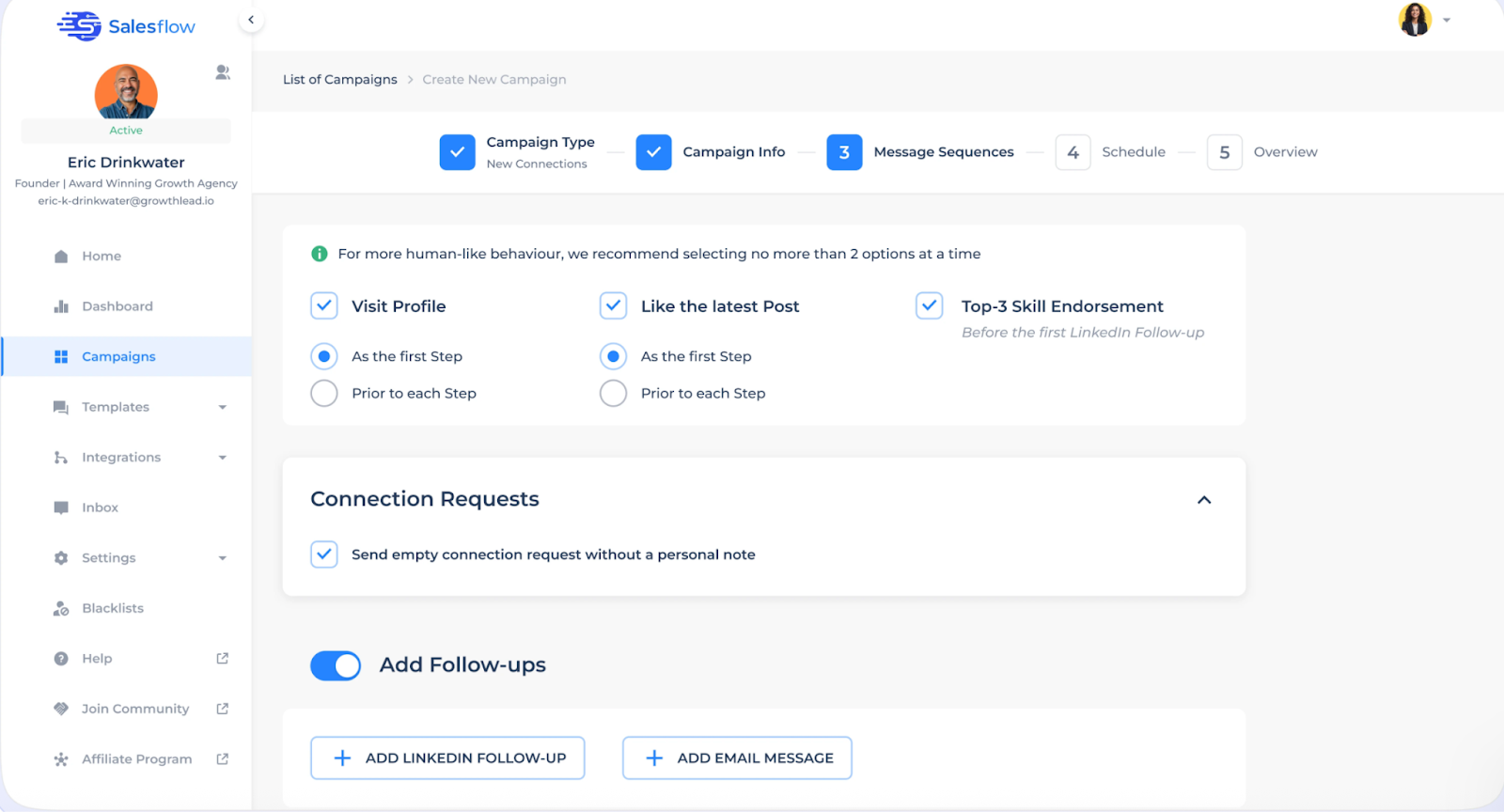
The biggest thing Salesflow does is help you send LinkedIn messages automatically.
You can:
- Send up to 400 connection requests per month
- Run multiple campaigns at once
- Reach new leads every day, even while you sleep
Automatic Follow-ups with Open InMails
Once someone accepts your connection, you can send them automated follow-ups.
And if they didn’t connect? You can still reach them with Open InMails, up to 800 per month.

Real-Time Inbox (So You Never Miss a Reply)
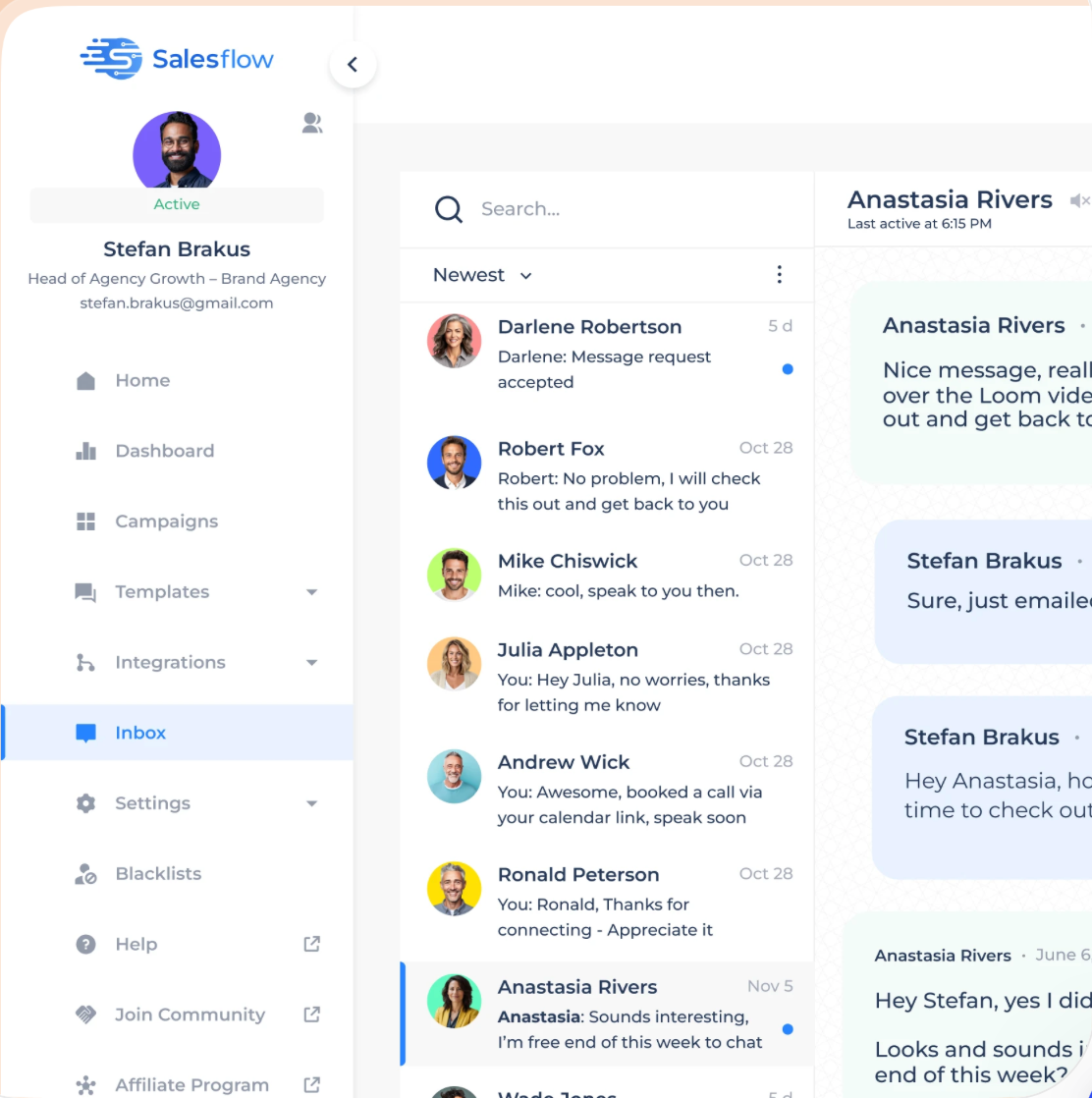
Salesflow gives you a clean, simple inbox where you can:
- Read and reply to messages
- Tag conversations
- Set follow-up reminders
- Even schedule messages to send later
Message Templates to Save Time
You don’t have to start from scratch every time.
Salesflow lets you:
- Create and save message templates
- Reuse them in any campaign
- Save common replies and use them with a click
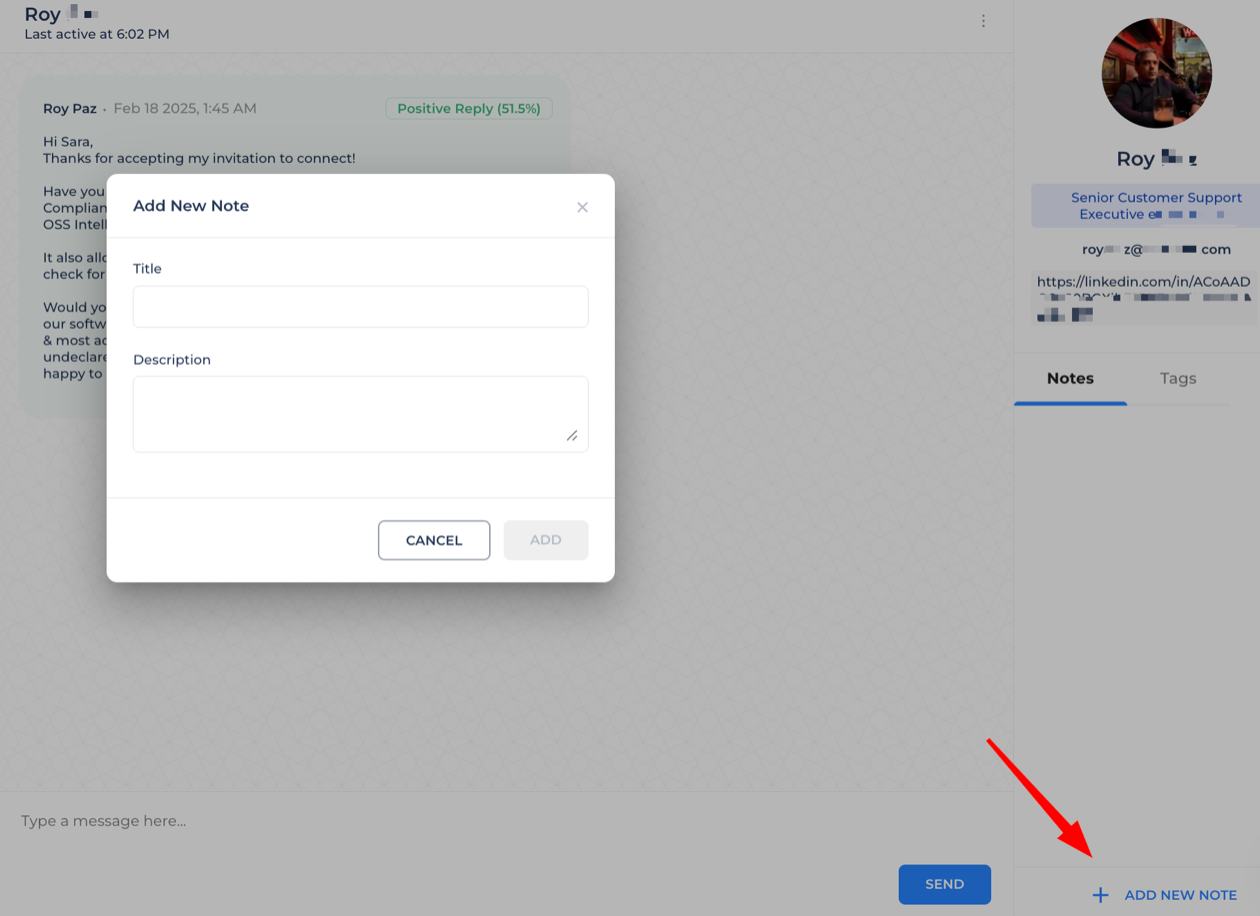
It keeps your messaging fast, clear, and consistent.
Advanced Analytics to Track What’s Working

Salesflow tracks:
- How many invites were sent
- How many people connected
- Who opened and replied
- What’s working (and what’s not)
You can even download the data if you want to analyze things deeper or share with your team.
Import Leads with CSV Uploads
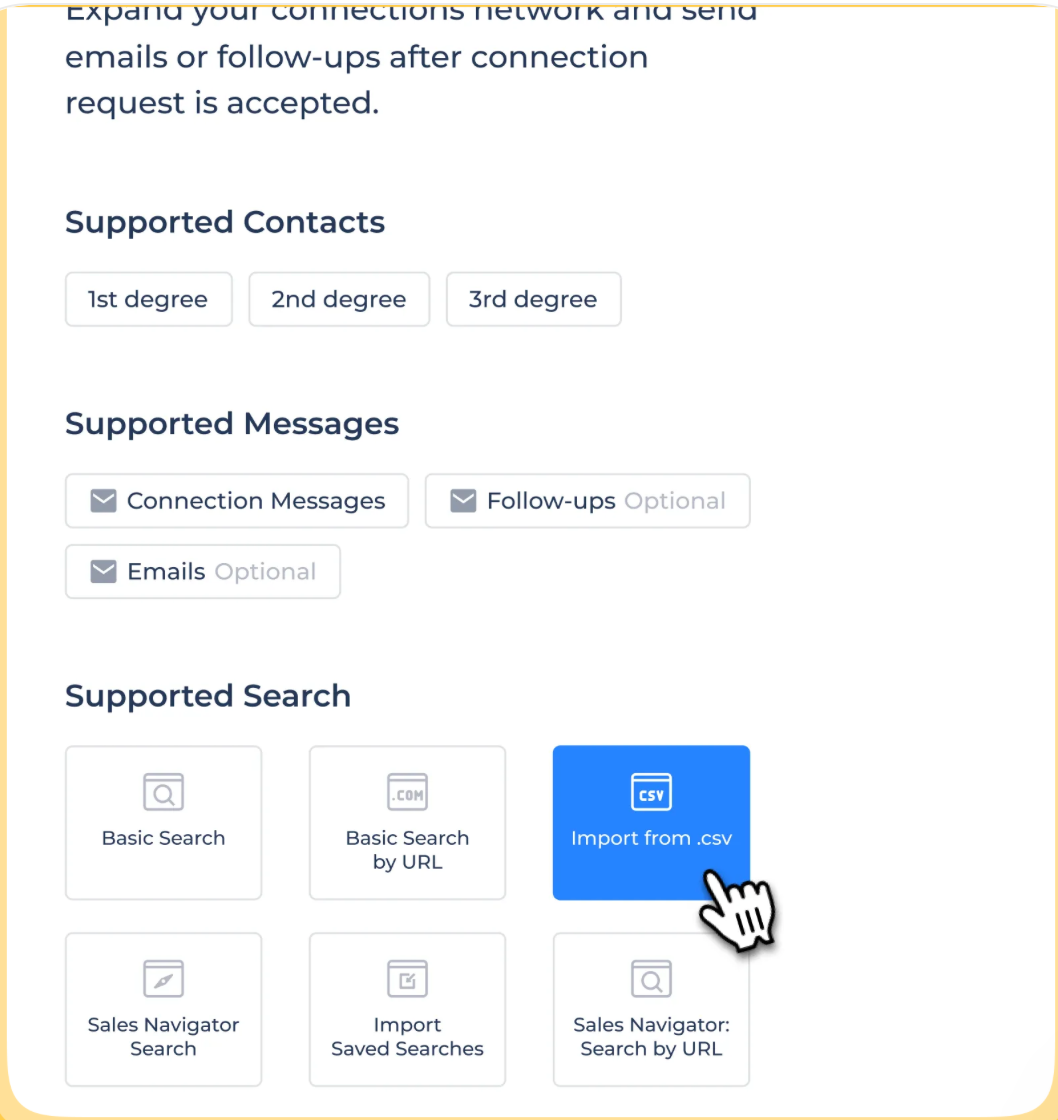
Got a lead list? Just upload it.
Salesflow lets you:
- Import leads with LinkedIn URLs, names, companies, and custom fields
- Export campaign results anytime for reporting or review
This helps with hyper-targeted outreach, and you stay organized.
Safety and LinkedIn Compliance
If you are worried about getting restricted or banned on LinkedIn, then Salesflow takes care of that.
You get:
- Cloud-based sending (runs in the background)
- Randomized activity (feels more human)
- Auto-withdraw of old invites
- Dedicated IP options for better safety
It’s built to keep your account safe while you scale outreach.
Engage Before You Message
So, if you want to improve your reply rates.
Salesflow can help you:
- Visit your lead’s profile
- Like one of their posts
- Endorse their top skills
These actions get you noticed, so when your message lands, it doesn’t feel cold.
Tools for Teams and Agencies
- Manage unlimited users
- Track every campaign in one dashboard
- Use your own logo and branding
- Control roles and permissions
- Get dedicated support and onboarding
Makes it easier to manage multiple clients or teammates in one place.
CRM with Zapier Integration and API
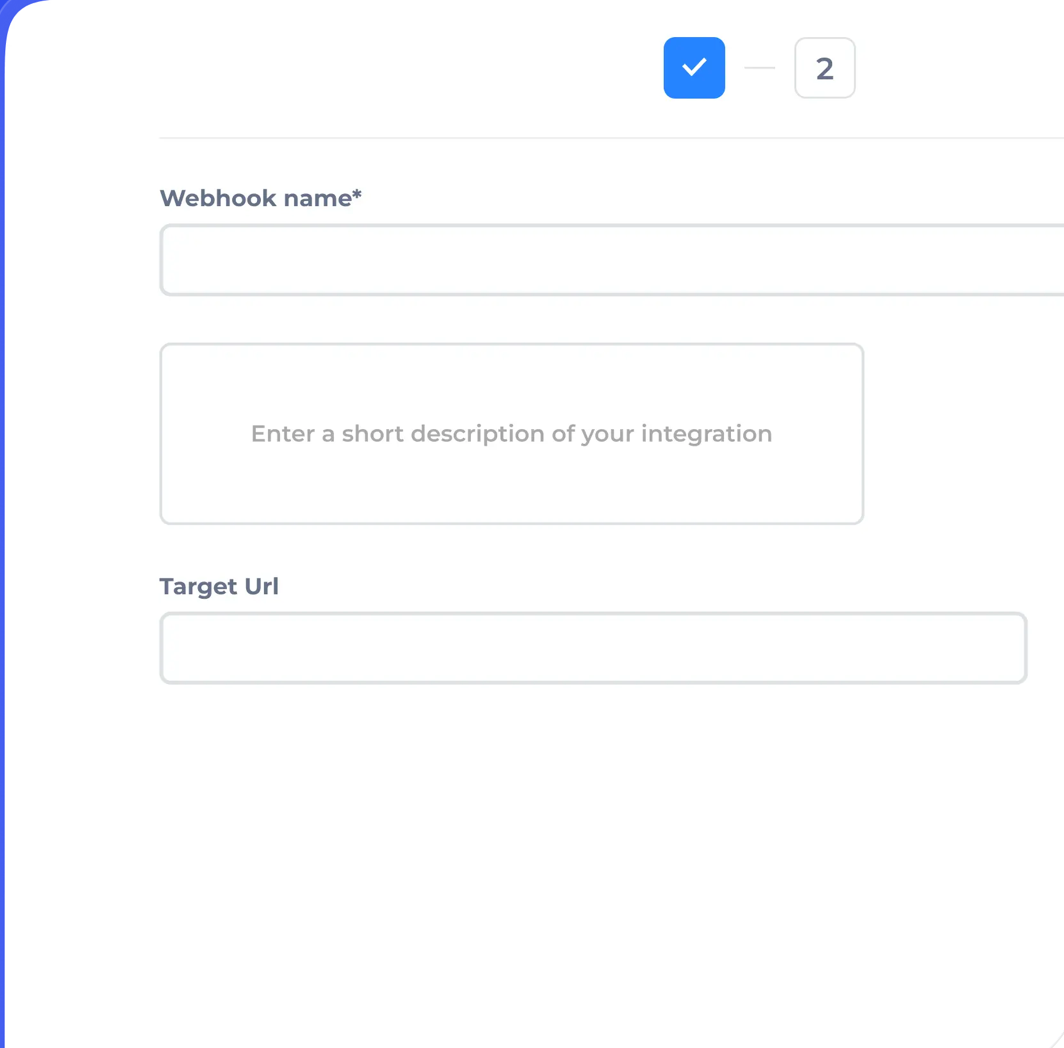
You can:
- Connect it with your CRM using Zapier
- Use the Salesflow API to sync your outreach data to Google Sheets or other dashboards
- Automate, like moving leads into sequences when they fill out a form or visit your site
Perfect if you want to tie Salesflow into your full sales process.
Done-for-You Setup (Optional)
Don’t want to set it up yourself?
You can get Salesflow’s team to do it for you, campaign setup, copywriting, onboarding, everything.
It’s a one-time $199 add-on. Good option if you just want it done right from Day 1.
Now that we know the features of Salesflow, let’s move on to what users think about Salesflow. .
What Users Dislike About Salesflow?
Here’s exactly what real users said they didn’t like about using Salesflow, you should know before using it:
- LinkedIn accounts keep disconnecting
Multiple users complained that their LinkedIn accounts disconnect often.
When that happens, campaigns pause, and you have to log back in manually to fix it, which breaks the automation flow.
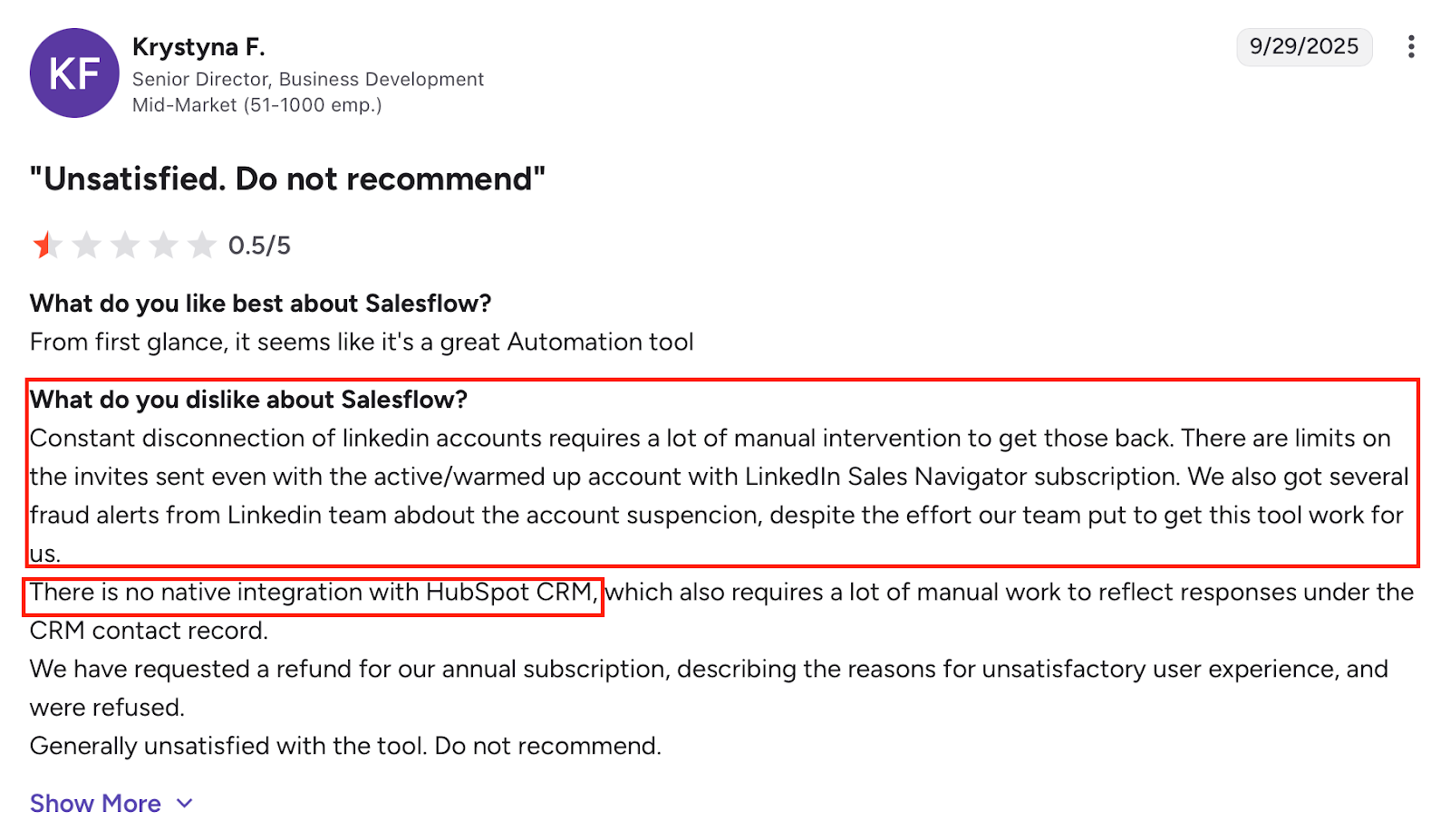
- No native HubSpot or CRM integration
If you’re using HubSpot or another CRM, Salesflow doesn’t sync directly.
Many users had to rely on workarounds, which made managing replies and pipeline tracking harder.
- Buggy and unstable at times
Some users had major issues with bugs: random errors, slow loading, campaign errors, or the system acting up daily.
One reviewer even called it “the buggiest software I’ve ever used.”

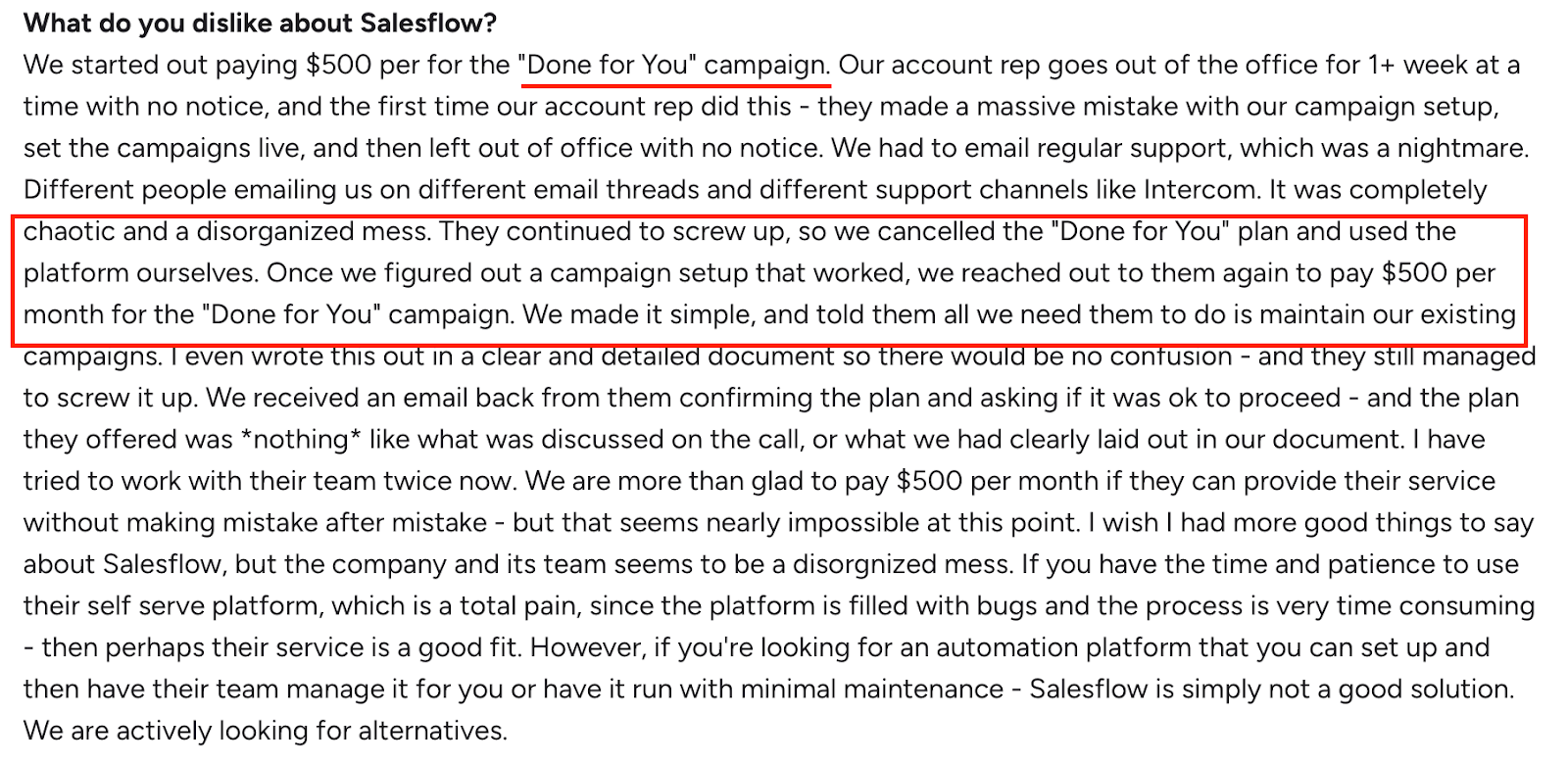
- Difficulties with setup and onboarding for teams
In the Done-for-You plan, users faced poor communication and setup errors from the Salesflow team.
A few even had to cancel because the team couldn’t follow clear instructions.
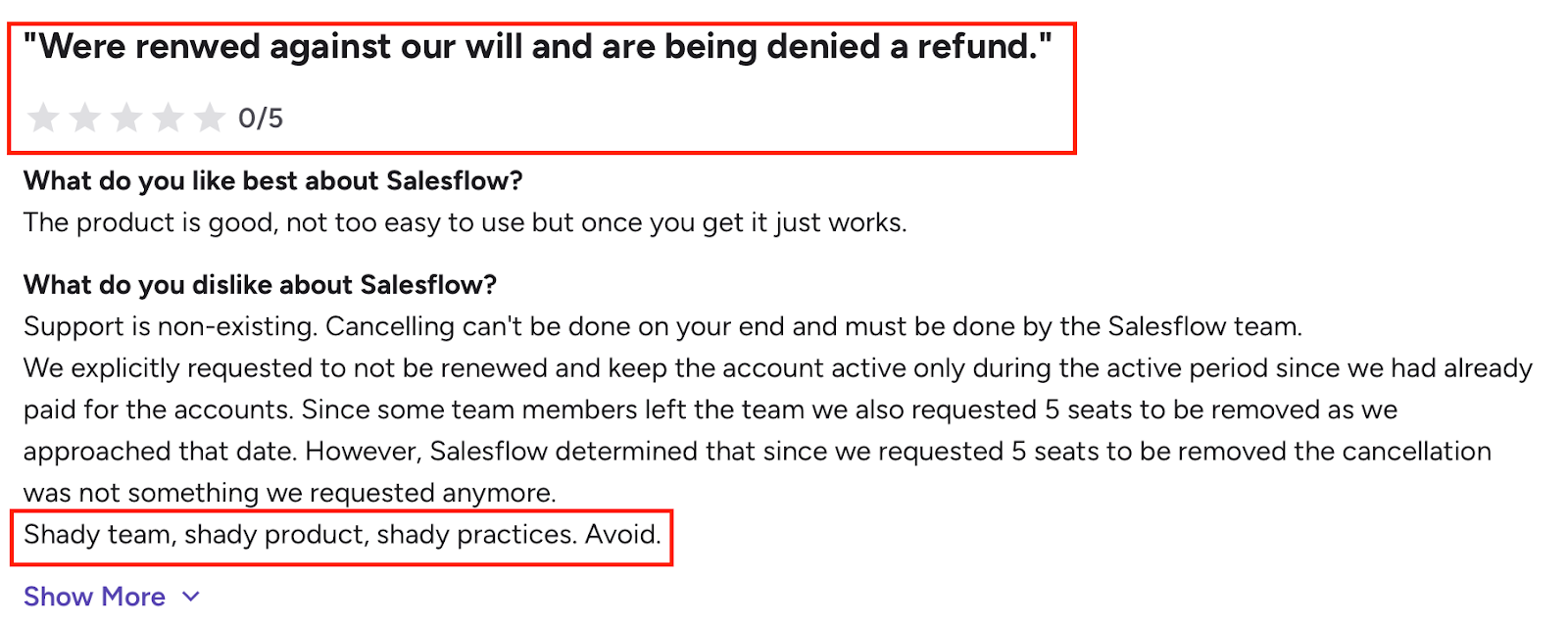
- Refund and cancellation issues
Some users requested refunds and were denied, even after explaining their problems in detail.
Others said cancellation was not self-service and had to go through the support team, which wasn't always responsive.
- Basic reporting and confusing data
The stats dashboard exists, but some users found the metrics confusing or inaccurate.
Success rates didn’t add up, and data didn’t always reflect real campaign performance.

- Limited personalization and no AI writing support
Users have to write their own message copy and there’s no built-in AI to help personalize or optimize messages across campaigns.
For teams expecting smart tools, this felt limiting.
How much does Salesflow cost?

If you’re thinking of trying Salesflow, there are a few different pricing plans depending on whether you’re using it solo, with a team, or running an agency.
Let me break it down for you:
Single User Plan – $99/month
(Or $79/month if you pay yearly)
This one’s for you if you’re a solo founder, freelancer, or just getting started.
You’ll get:
- Up to 400 connection invites a month
- Can send up to 2,000 follow-up messages
- Email + LinkedIn outreach together (yep, multichannel)
- 800 Open InMails to use
- Real-time inbox (you can manage all chats in one place)
- Reporting, analytics, and CSV import
- Works with Sales Navigator too
Teams Plan – Custom Pricing
Got a team? This plan gives you more control and support.
It includes everything in the single plan, plus:
- A team dashboard
- Blacklist feature (handy to avoid re-contacting people)
- Customer Success Manager to help you out
- Zapier integration
- And things like auto-visiting profiles, liking posts, and endorsing skills
You’ll need to book a demo to get the exact pricing.
Agency Plan – Custom Pricing
Running a lead-gen or outreach agency? This plan is for you.
Here’s what’s added on top of the Team plan:
- Full white-label branding
- Admin panel to manage all your client accounts
- A global dashboard to track every campaign in one place
- Your own dedicated IP settings (for better deliverability)
- And even API access to build your own dashboard if needed
You’ll need to talk to the agency team for pricing here too.
One-Time Setup Help – $199
If you’re not sure where to start, they’ve got a “Done-With-You” add-on.
You’ll get:
- A dedicated person to set up your first outreach campaign
- Help with LinkedIn message copy
- One-on-one training so you know what you’re doing by the end of the month
If you’re already running LinkedIn campaigns and want something plug-and-play, Salesflow gives you that simplicity.
You don’t need to install extensions, and the UI is clean enough for any beginner to start in minutes.
It also offers white-labeling if you're an agency managing LinkedIn outreach for clients.
But here’s the thing, you won’t find the pricing listed upfront unless you book a demo.
And that’s a bit annoying if you're just comparing tools.
The starting tier has limited functionality, and if you want access to their advanced features, like Smart Inbox or InMails, you'll need to upgrade.
And based on the user reviews read, there are a few things that might slow you down:
- Frequent LinkedIn disconnections that break your sequences
- No true multichannel (you’ll have to handle email separately)
- Missing native integrations with CRMs like HubSpot or Salesforce
- No AI to help you write or personalize your messages
- Clunky campaign performance tracking
- Support team is slow in some cases
So yeah, it’s smooth and lightweight, but it’s also pretty limited if you're scaling outbound seriously.
But don’t worry. We won’t let you leave without a stronger alternative.
Salesforge: The Best Alternative to Salesflow for Multi-Channel Outreach

If Salesflow felt too limited, too manual, or too focused only on LinkedIn, Salesforge.
It’s helps you run automated sequences across LinkedIn and email, built-in deliverability tools, unlimited scaling, and AI personalization.
No extensions. No seat-based billing.
Whether you’re an agency juggling multiple clients, a founder managing outreach yourself, or a sales team looking to book more meetings, Salesforge is built to do what Salesflow can’t.
Salesflow vs Salesforge: What’s the Real Difference?
Pros of Using Salesforge
- You can automate LinkedIn and email together, no need to switch platforms
- Comes with built-in warm-up and deliverability protection (via Warmforge)
- Agent Frank (AI SDR) writes and sends personalized emails as well as handles the complete campaign for you.
- You can manage replies from all accounts in Primebox™ (unified inbox)

- Run campaigns in multiple languages
- Scale without limits, no extra charges for users, senders, or mailboxes
- Easy setup, rich documentation, and Salesforge Academy training
Cons of Using Salesforge
- No freemium plan, but does offer 14-day free trial
- Agent Frank costs extra ($499/mo), but is optional
Salesforge Pricing

- Pro Plan – $48/month
- Growth Plan – $96/month
- Agent Frank Add-on – $499/month
(Optional AI SDR that fully automates outreach for you)
👉 Get 100 free credits via Leadsforge.ai, the verified lead search engine built into the Forge Stack.
Salesflow works for basic LinkedIn-only outreach.
- But once you start scaling, adding email, or caring about inbox placement, It’s more than just automation, it’s real multichannel strategy
- Built-in AI + warm-up + CRM sync + advanced analytics
- No seat-based limits. No shady invite caps. Just scale.
👉 Try Salesforge free and see the difference.
.png)
.png)